

Images in Wordpress Lightbox (LightView) to display in the wind
WordPress Plugin Lightbox for images to display in the wind, there are several.
This is also in it, LightView are provided through a WordPress plugin for Lightview for WordPress to introduce.
Cases)

I immediately try to install.
Install the plug-in as normal Plugins- Add New- [Upload]From where to download from where you downloaded the ZIP file and install it.
After installation, enable the plug-in.
Immediately, try using.
I'll try the steps below.
- Article (entry) to LightBox (LightView) upload the image to view / upload from the insert.
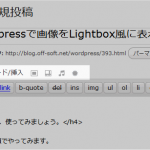
- Article (entry) Insert a picture.
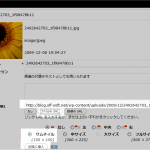
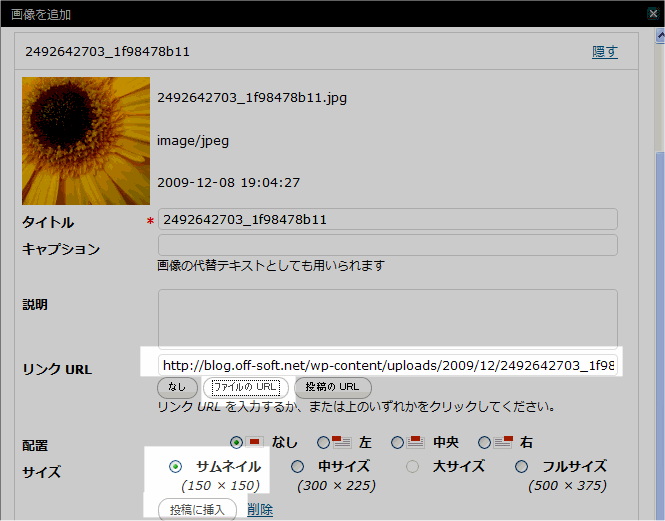
- Link URL:URL URL of the file, click the Insert button.
- Size:I click the thumbnail.
- Click the Insert button.
- Article (entry) the following code into the HTML output.
<a href="http://blog.off-soft.net/wp-content/uploads/blog_off/2009/12/light_2.png"><img src="http://blog.off-soft.net/wp-content/uploads/blog_off/2009/12/light_2-150x150.png" alt="light_2" title="light_2" width="150" height="150" class="alignnone size-thumbnail wp-image-401" /></a>
The first <a href = "http:// ….. tag class =" lightview "Add.
<a href="http://blog.off-soft.net/wp-content/uploads/blog_off/2009/12/light_2.png" class="thickbox"><img src="http://blog.off-soft.net/wp-content/uploads/blog_off/2009/12/light_2-150x150.png" alt="light_2" title="light_2" width="150" height="150" class="alignnone size-thumbnail wp-image-401" /></a>
- Last article (entry) is completed and released.

This plug-in, lightview features as a WordPress plugin to easily serviceable, even compared to other LightBox plug-in system, I think a simple category.
Once I tried to be good.
Also, because other than those listed here can also be used lightview features, Lightview for WordPress please see.
- For a set of images:
<a href="foo.jpg" class="thickbox" rel="gallery[foobar]">foo</a>
<a href="bar.jpg" class="thickbox" rel="gallery[foobar]">bar</a>
- For a QuickTime movie:
<a href="quicktime.mov" class="thickbox" title="">QuickTime</a>
- For a Flash video with title and size limits:
<a href="flash.swf" class="thickbox" title="Title::::width:320,height:240">video</a>
- For a webpage (iframe) with title and description, in fullscreen:
<a href="http://www.google.com" class="thickbox" title="Title::Description::fullscreen:true">Google</a>
In addition, we lightview original site and there also helpful.
You might also like:
Comments
Leave a Reply
Transrator


Recent Posts
- Print PHP Warning (Invalid CRT parameters detected ) by qTranslate on WordPress
- How to use your original mysql table in WordPress post.
- A Few SQL to rescue you with WordPress
- Redirect Loop by qTranslate on WordPress 3.0
- How to use GMail with WordPress
- How to use More-Feed-Excerpt WordPress Plugin
- Broken language file(mo file) by qTranslate ?(2)
- Broken language file(mo file) by qTranslate ?
- How to convert from posts of Joomla! to WordPress
- How to monitor ping send to ping servers with Wordrepss
Categories
- Joomla! (8)
- Installation (1)
- MySQL (2)
- コマンドヘルプ (2)
- SEO (10)
- WordPress (57)
- Installation (1)
- プラグイン (32)
- Preferences (21)
- Software (8)
- KDE related (1)
- Office Related (2)
- SQLite (1)
- Related WEB (3)
- Development / Languages (7)
- Noise (7)
- Uncategorized (3)
Tag Cloud
execute remove フロントページ 投稿ページ トップページ install WIndows Note Convert META generator 日付 donwload file manage multibyte utf-8 unicode shiftjis euc console サイトマップ 問題 ParmaLink Redirect パーマリンク はみ出る pre 幅 テンプレート テーマ タグクラウド マルチランゲージ リダイレクト PHP(タグ) タグ table control HTML(タグ) コマンド 国際化(翻訳) SQLite(タグ) MySQL(タグ) qTranslate プラグイン(タグ) Wordpress(タグ)Links
Site Description
Joomla!, Wordpress as CMS using a site building, site management, software usage to describe the development tips.


